One inbox, on your phone. Answer, and they carry on.
Close your laptop and your agents keep working on a machine of your own. With Miko for iPhone, every agent that needs you lands in one Inbox on your phone. You get notified, answer with Allow, Deny or the question's own options, and the agent carries on.
- iPhoneMiko for iPhone
- AndroidWeb app
On your phone
How it works.
Pair your iPhone
On your Mac or in a browser, open Settings › Devices › Add iPhone, then scan the code with Miko for iPhone or type it in.
On Android
Open Miko in Chrome, sign in with your passkey and press Add this device, or approve it from a device you already use.
Turn on notifications
On iPhone, allow notifications for Miko. In the web app, press Enable notifications in Settings, then Send test in Notification settings, and “Test from Miko” should appear in a few seconds.
Answer, and it carries on
When an agent needs permission or has a question, you get notified. Tap it, press Allow or Deny, or pick an answer, and the agent carries on.
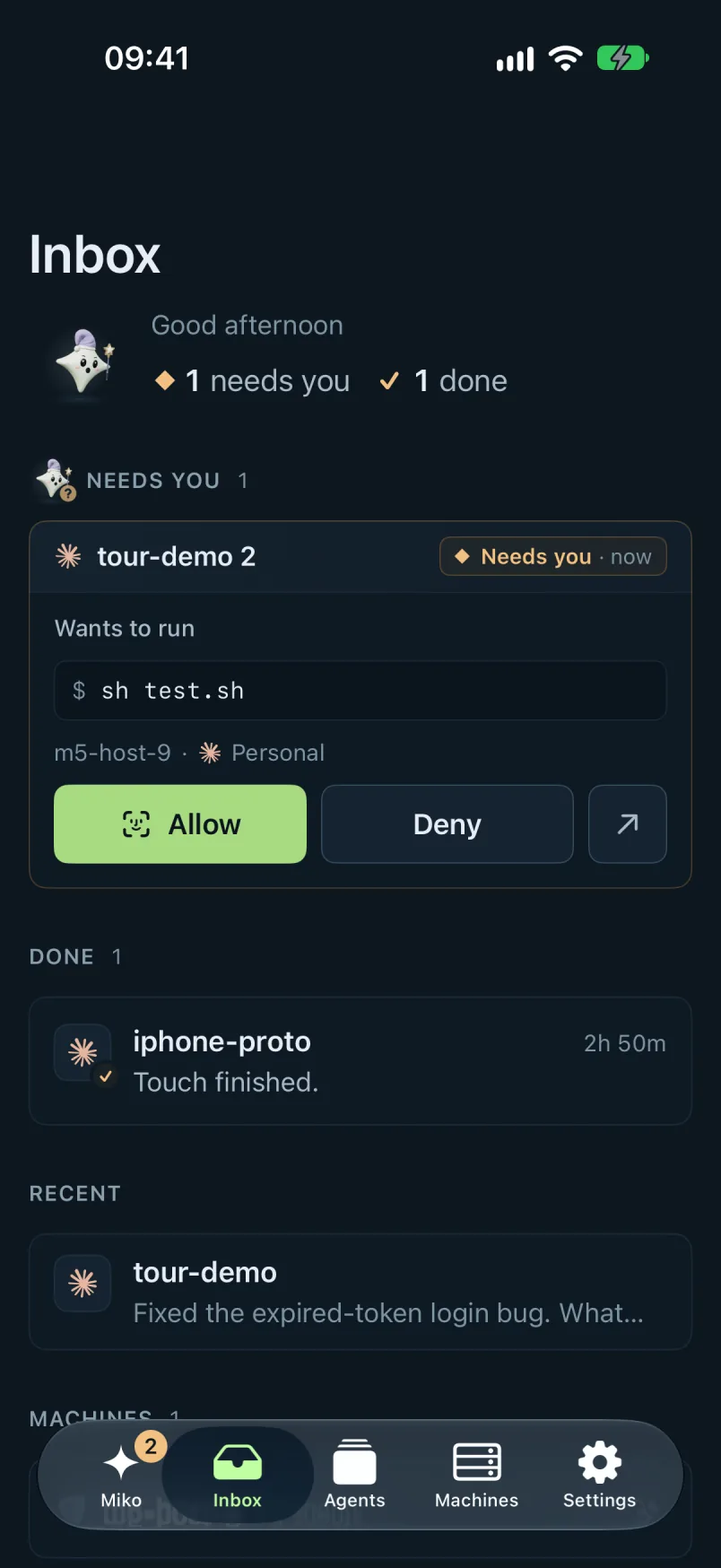
The Inbox
Answer right from the card.
When an agent needs a decision, it lands in the Inbox. Each card says why it's waiting: Needs permission, Has a question, Waiting for your review or Stopped with an error.
- Press Allow, Deny or Deny with a note…, or pick one of the question's own options.
- A review card has a box to reply, and a finished answer shows Reply ready.
- Already handled means another device answered first, or the agent moved on, and nothing was sent.
- Only one device types into an agent at a time. Press Type here to take over.
Notifications
Notifications that say what's waiting.
A notification says which agent it is and why: “… needs permission”, “… has a question”, “… is waiting for your review”, “… stopped with an error” or “… replied”, with the account, the machine and the request.
- In Chrome, Edge and Firefox 152+, Allow and Deny, or the question's options, sit on the notification when it shows the whole request. On iPhone and in Safari, tap it, then press Allow on the card.
- A permission request or question gets one reminder after 15 minutes, and replies are always silent. Nothing is sent while you're looking at that agent; if you don't answer, it comes after a minute.
- Quiet hours run from 22:00 to 07:00 unless you change them. Notifications still arrive, without sound, and Still alert me for: can let permission requests or questions through. On iPhone, sound follows the phone's own settings, so use Focus to silence Miko there.
Your devices
Private, and yours to cut off.
Notification contents are encrypted on your machine before they're sent, so Apple and Google only carry sealed messages.
- Hide details on the lock screen shows only “An agent needs permission”, without names, the command or the question.
- Miko for iPhone joins only when a device you already use pairs it, in Settings › Devices › Add iPhone.
- Signing out on a device stops its notifications at once. An account can have up to 20 devices.
Miko for iPhone
An app of its own.
Miko for iPhone pairs with the web app or Miko for Mac and works with every provider. Its tabs are Miko, Inbox, Agents, Machines and Settings: tell Miko what to do, answer what needs you, and watch an agent's live work, with its test runs and diffs.
Do I need an app?
On iPhone, use Miko for iPhone and pair it from your Mac or a browser in Settings › Devices › Add iPhone. On Android, open the web app in Chrome, with nothing to install, then press Enable notifications in Settings.
Nothing arrives on my iPhone. What now?
In your iPhone's Settings › Notifications, check that Miko is allowed to send notifications.
Why is there no Allow button on the notification?
Safari and iPhone show no buttons: tap the notification, then press Allow on the card. Elsewhere, buttons show only when the notification shows the whole request, so never for file edits or MCP tools, and never with Hide details on the lock screen on.
Can Apple or Google read my notifications?
Their contents are encrypted on your machine before they're sent, so Apple and Google only carry sealed messages. With Hide details on the lock screen on, your lock screen shows only “An agent needs permission”.
I lost my phone. What now?
On another device, open Settings › Manage devices, press Remove… on the phone, then Revoke. It's cut off from every machine within about 2 seconds. If it approved other devices, Miko lists them so you can revoke those too.
Get your invite.
Join the waitlist and we'll email you an invite.
Every plan has every feature.